How much of an AI-made deck can you edit in PowerPoint?
Decks made with Pawapo ai can be downloaded in PowerPoint format (.pptx). Besides regular text, basic shapes and tables, supported elements of hand-drawn SVG are also converted into text and shapes. Photos, backgrounds and some complex effects become images. Edits you make in PowerPoint on your computer are not carried back to the deck or its versions in Pawapo ai.
Specifications checked: · Pawapo ai product guide
What you can edit in PowerPoint, and what becomes an image
| Element | Exported as | Notes for editing |
|---|---|---|
| Regular text | Editable as text | You can rewrite the text. Text that is part of an image is not included. |
| Rectangles, rounded rectangles, lines, circles, arrows and so on | Editable as shapes | Elements exported as shapes can be moved, resized and more. |
| Backgrounds, logos, icons | Placed as images | The text and lines inside them cannot be edited individually as text or shapes. |
| Photos and inserted images | Placed as images | Treated as images. Text in a photo does not become editable text. |
| Tables | Editable as PowerPoint tables | For elements exported as tables, you can edit cell text and work with rows and columns. |
| Hand-drawn SVG (raw) parts | Converted to matching text and shapes | Supported elements can be edited individually. Images and some complex effects become images; this is not a way to edit the original SVG as is. |
What you can edit depends on how the original deck was made. You can't tell how much is editable in PowerPoint just by looking at a PDF or an image.
Make it with AI, finish it in PowerPoint
- Sign up for Pawapo ai and connect the AI you use. For how to connect, see the Guide.
- Tell your AI the purpose, audience and structure of the deck, and ask it to make it. If you want to edit in PowerPoint, say so too.
- Review the deck. Changes you want kept in your team's history should be made in the Pawapo ai editor or through your connected AI.
- Export in PowerPoint format and open the file on your computer. Before finishing, check that the elements you want to edit can be selected as text and shapes.
An example request to your AI
Please make a 3-slide sales proposal. Structure: challenge, solution, next action. I want to edit the text and basic shapes in PowerPoint afterward, so don't put text inside images; use editable elements.
This is an example request. After export, check what you can actually edit. See also how to connect your AI and how to make edits.
Edits kept in your team's history vs. edits on your computer
Edits made in Pawapo ai are kept as versions of the deck, with the differences recorded. Editing your file in PowerPoint is not carried back to the deck in Pawapo ai. For changes your team will pick up later, it is easier to manage if you edit in Pawapo ai first and then export.
Download a PowerPoint file to test editing
Sample PPTX for testing edits (4 pages) · PDF of the same content
A sample made by Pawapo ai's export process, with text, basic shapes, a table, hand-drawn SVG and images. We automatically check that the file contains editable text, shapes and tables as well as images. We can't guarantee how it displays or edits in every PowerPoint environment. Open it in your own PowerPoint and try rewriting text, ungrouping and working with the table.
An example proposal made with Pawapo ai
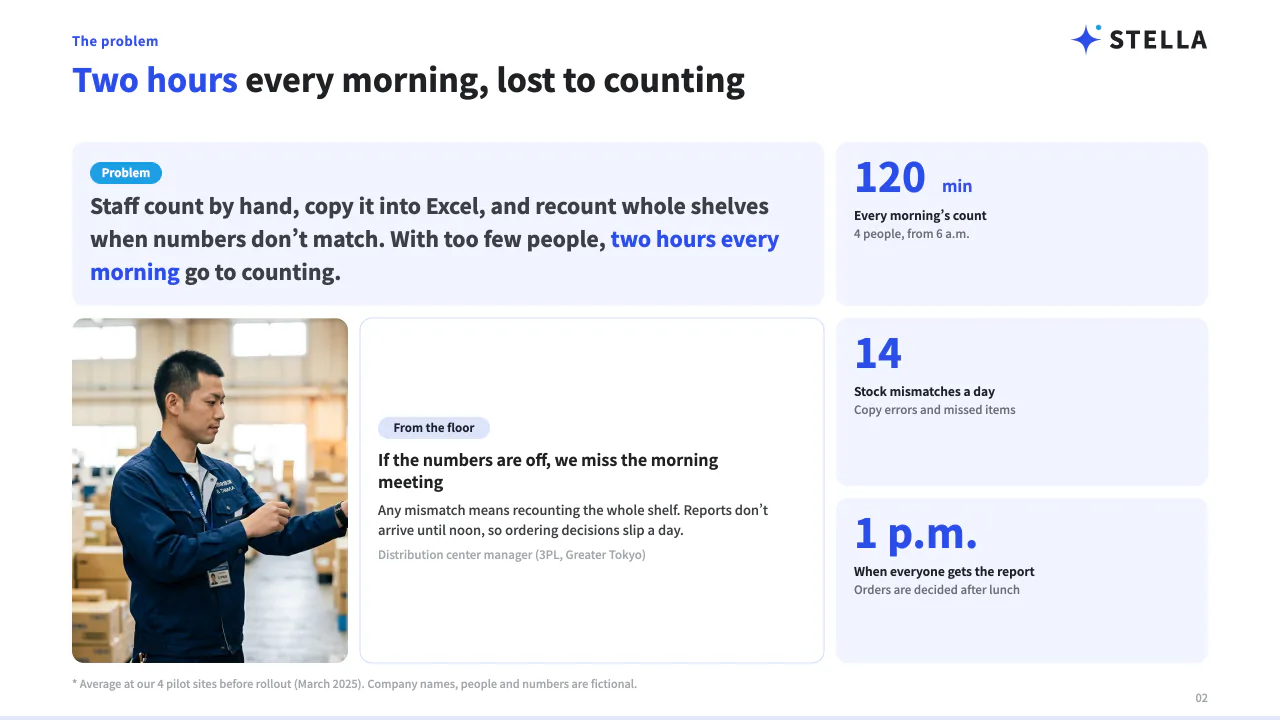
See all pages of the proposal as a PDF
This PDF shows what the finished deck looks like. It is not a file for testing what can be edited in PowerPoint. To check what you can edit, export your own deck in PowerPoint format.
What to check in the PowerPoint file you receive
- Click the text you want to edit and check that you can select it and type.
- Select shapes and backgrounds separately and check that they are split into the units you want to change.
- Check fonts, line breaks and text running over on the device you will use.
- Before sharing, check numbers, proper names and page order.
- Keep files you edited on your computer separate from the deck in Pawapo ai.
You can export to PDF and PowerPoint on the free plan too. Editing, exporting and viewing don't count toward the slides you make. For the conditions on people and slides, see the pricing page.